Switch to Jellyfin without starting over.
SwitchToJelly moves your Plex watch history, resume positions and playlists to Jellyfin, for everyone in your household. You see every change before it is written.
Plays from YouTube. Nothing is loaded from YouTube until you press play.
Your history, not just your files
Jellyfin can read the same media folders as Plex. What it cannot see is what you have watched. SwitchToJelly carries that across.
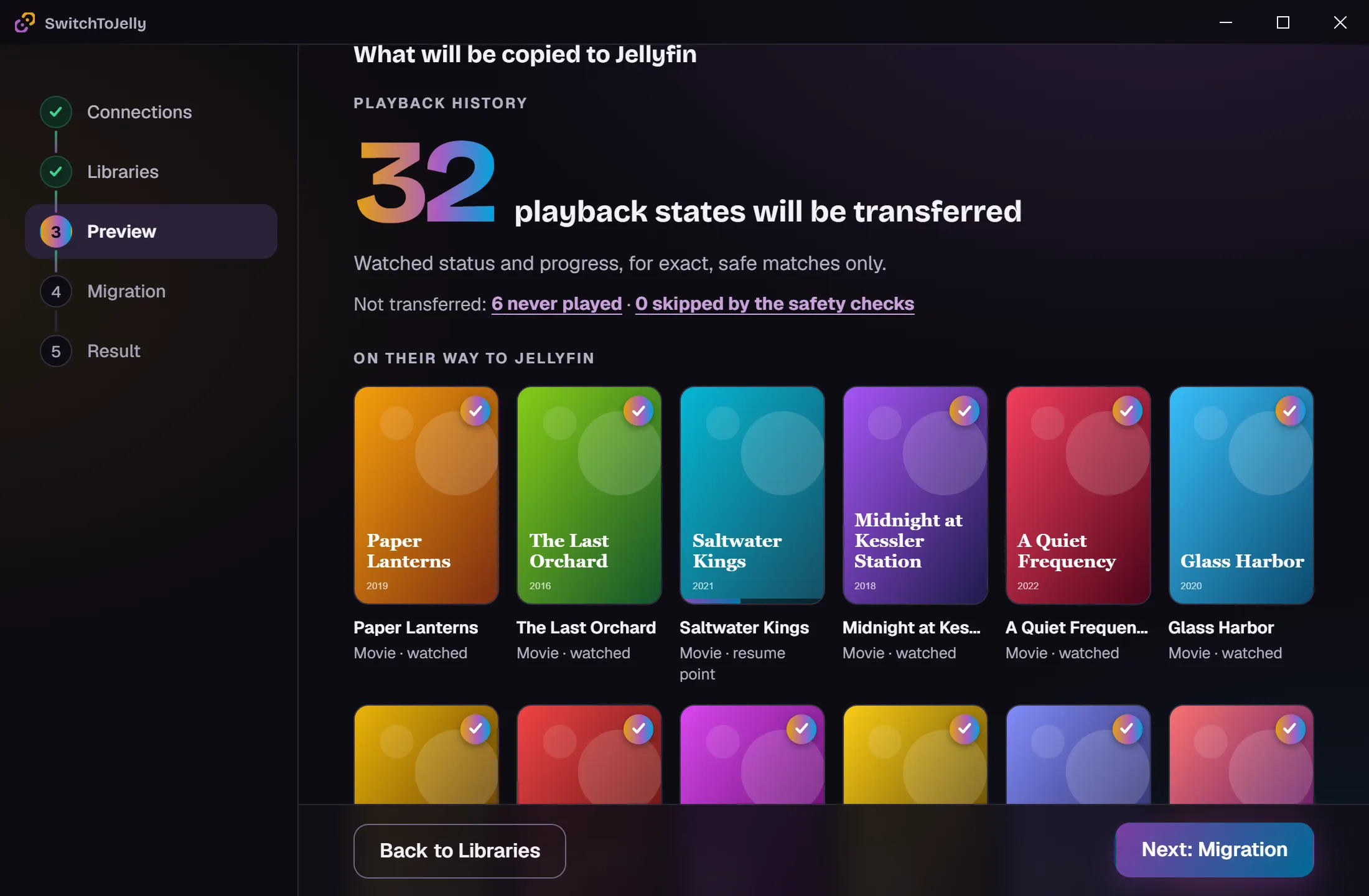
Watched states
Every movie and episode you finished in Plex shows as played in Jellyfin.
Resume positions
Half-watched films and episodes pick up where you stopped.
Playlists and watchlist
Your Plex playlists and Watchlist are recreated as Jellyfin playlists, entry by entry, in the same order.
The whole household
Plex Home members and the friends you share your server with, each to their own Jellyfin user.
Libraries set up for you
Creates and scans the Jellyfin libraries from your Plex ones when they do not exist yet.
Careful matching
History is only written to items proven to be the same, by their IDs or file. Remakes and same-name films are never mixed up.
Four steps, and you stay in control
- 1
Connect
Sign in to Plex and to your Jellyfin server.
- 2
Choose
Pick the libraries and the people to migrate.
- 3
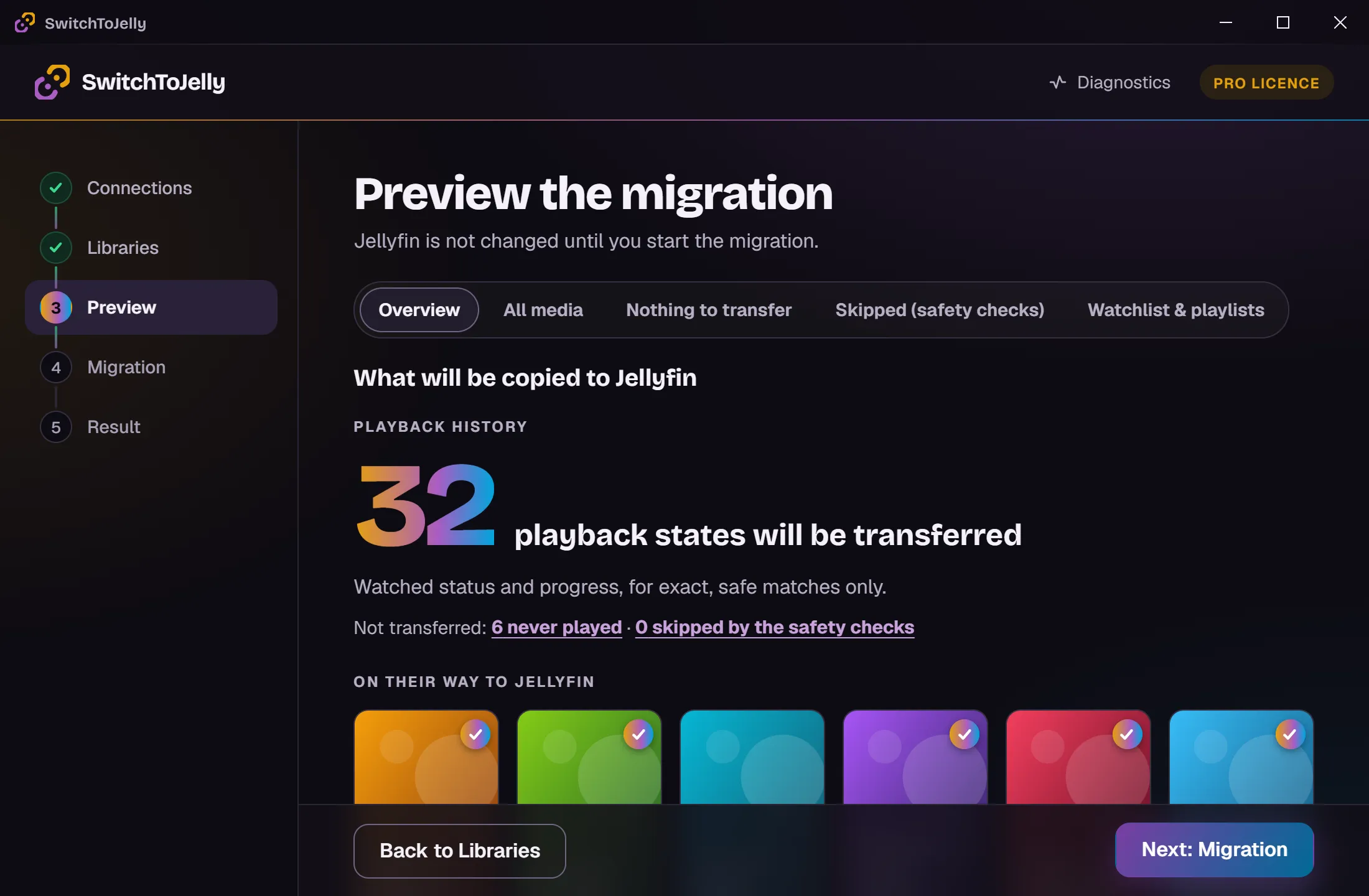
Preview
See exactly what will change in Jellyfin. Nothing is written yet.
- 4
Migrate
Run it, then save a report of everything that was done.
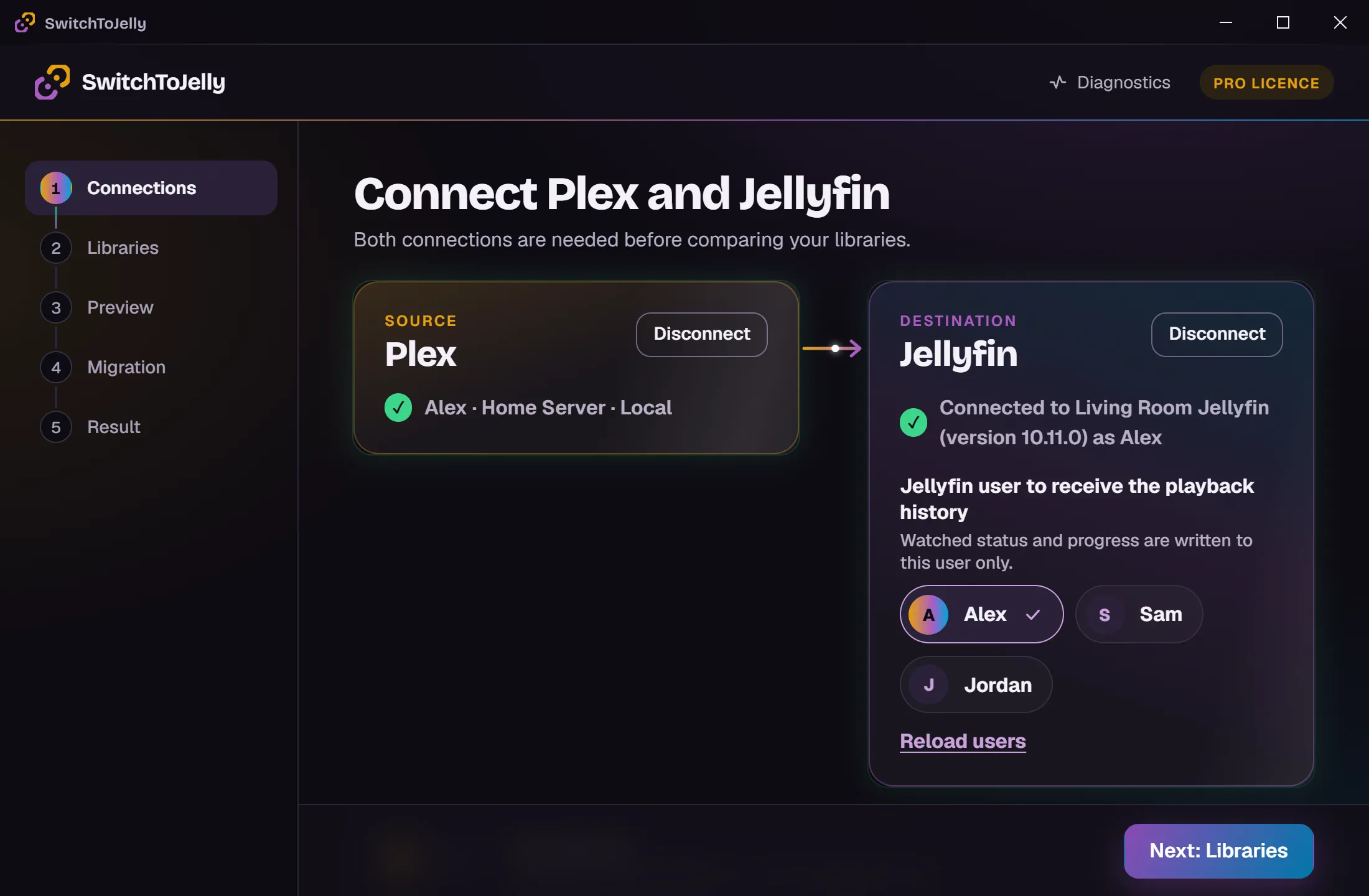
Connect both servers
Sign in to Plex, point the app at your Jellyfin server and pick the user who receives the history.
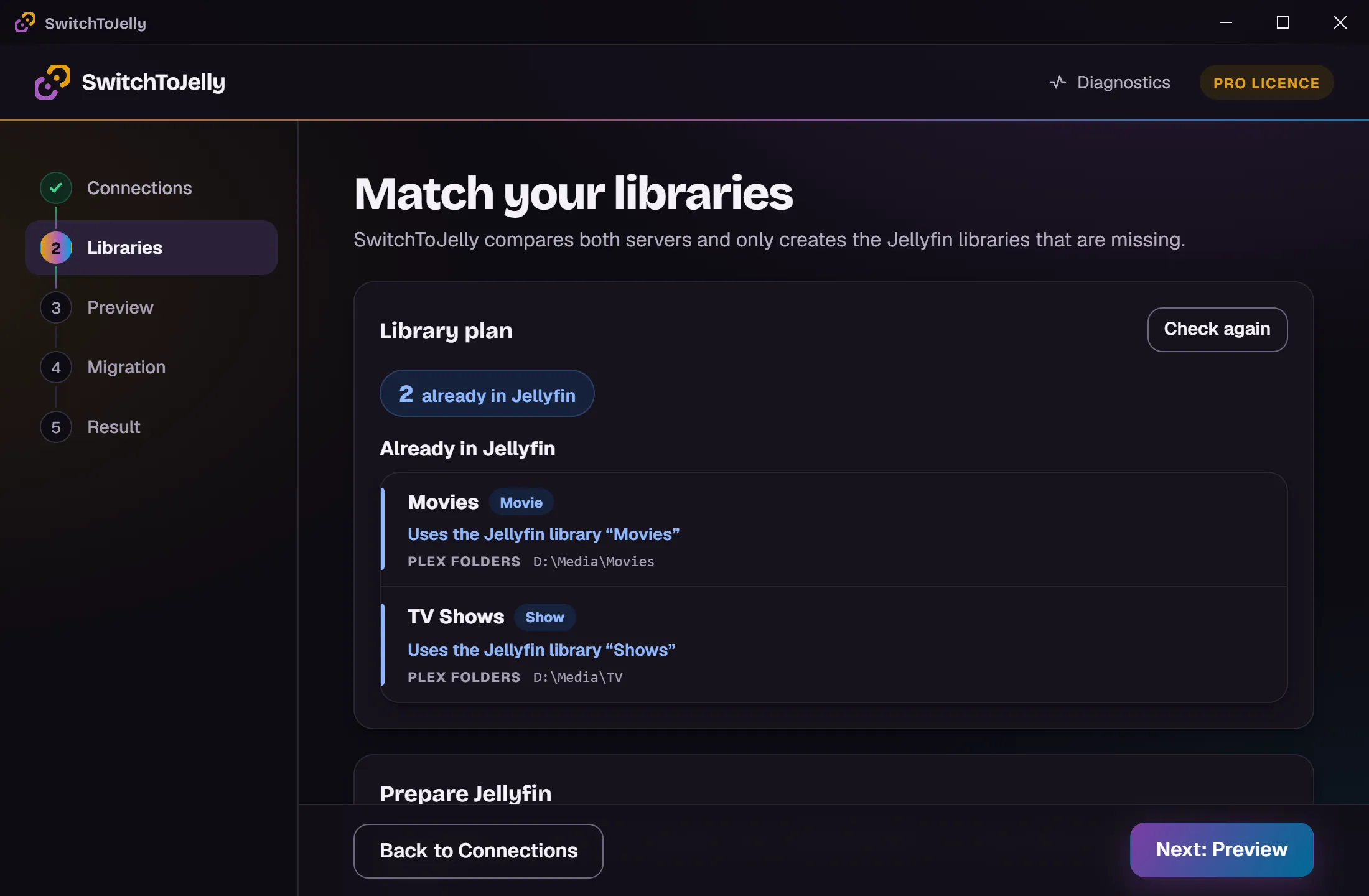
Match your libraries
Each Plex library is matched to a Jellyfin one by its folders. Missing libraries can be created for you.
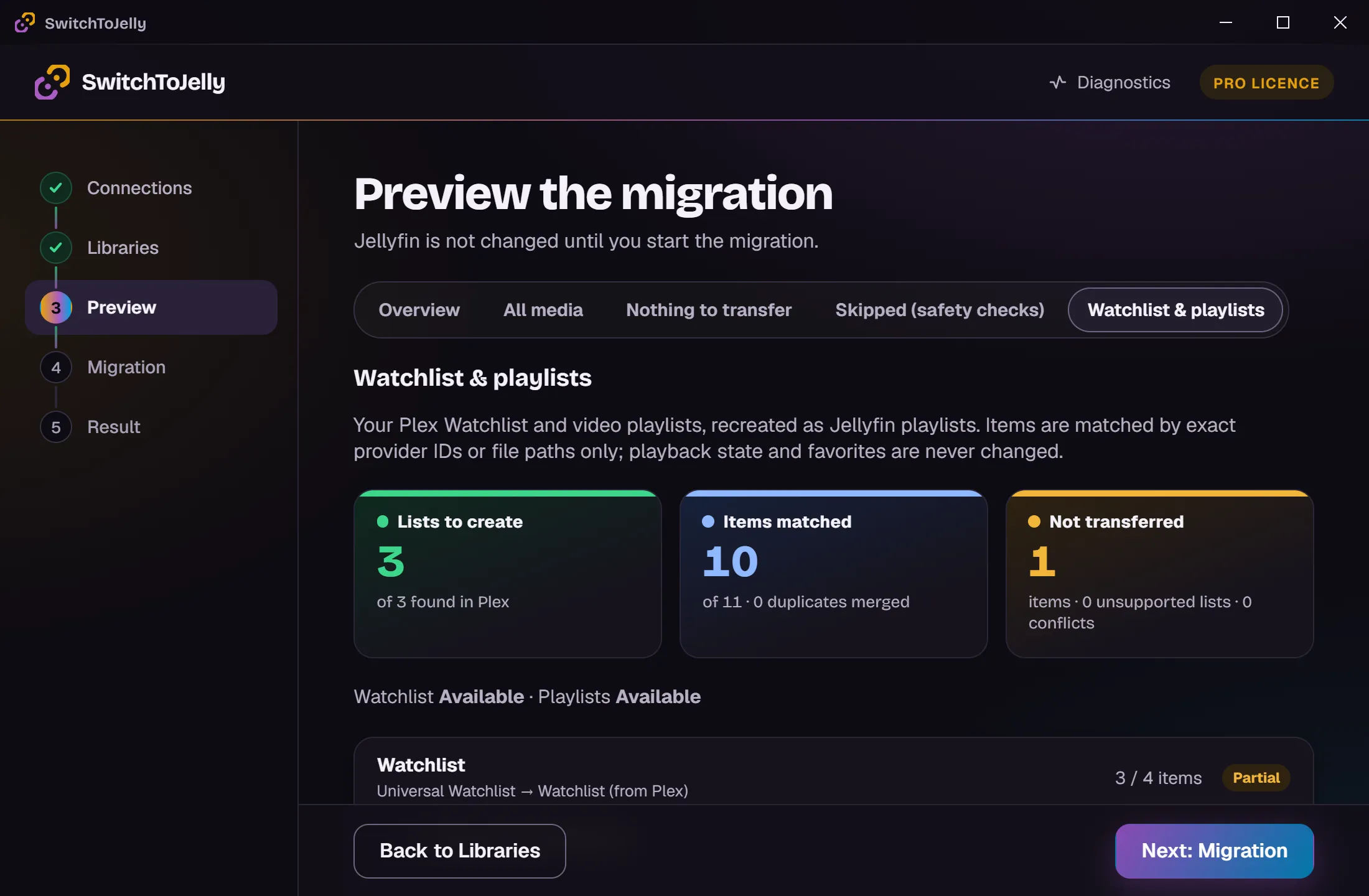
Check every list
The Watchlist and playlists are previewed item by item, including what cannot be found in Jellyfin.
Screenshots taken with demo data: every title and name is fictional.
Nothing changes until you say so
Migrating years of history should not feel risky. SwitchToJelly only reads your Plex server, and only writes to Jellyfin once you confirm.
- Preview first. Every watched state, resume position and playlist is listed before anything is written.
- Undo. After a run you can put the watched states and resume positions back as they were, and remove the playlists the app created.
- Plex stays untouched. Your Plex server keeps running exactly as before.
- Your credentials stay on your PC. They are kept in the Windows Credential Manager and only sent to Plex and your Jellyfin server. Read more
Free to scan and preview
See what it would migrate before you decide anything.
Free
- Connect Plex and Jellyfin
- Scan and match your libraries
- Full preview of the migration
- Create the Jellyfin libraries
With a licence
- Everything in Free
- Transfer watched states and resume positions
- Transfer playlists and watchlists
- For every household member and friend
The licence is checked offline on your PC. Licences are currently issued to beta testers.
Ready to switch?
You need Windows 10 or 11, your Plex account, and a Jellyfin server that sees the same media files.